When hacking and beer can come together into one single moment, you know you’re having a good day!
The Story:
And I’ve been having quite a few good days lately! You see, many years ago I tried my hand at making some homemade root beer the natural way (with yeast)… Absolute FAIL! It was many years ago so I don’t know what went wrong but I’ve gotten over the disappointment and decided to try again.
Making root beer is actually very similar to making beer. I’ve been trying my hand at root beer simply to learn the basics, plus I’m sure my nieces and nephews will enjoy it! Once I can make a good batch or two of root beer I am moving up to actual brews! Mmmmm… Can’t wait to brew my own IPA!
My current batch of root beer isn’t carbonating as fast as I remember it doing years back… if at all! I’m pretty bummed about it but this time instead of getting discouraged about it I’ve decided to take one of the arts I’m gifted at (hacking & programming) to improve this new art I’m trying to learn.
You see, there are many variables when it comes to making a good homebrew. Temperature is one of the important ones (all the way from the water to the belly). In order for the yeast to properly carbonate the beverage it needs to sit at just the right temperature with very little temperature fluctuations. Since I live in a house that turns 120 years old this year, I’ve found it very difficult to regulate the temperature well.
The Goal:
At this time I’m not 100% certain that temperature is my current problem, but from what I’ve read it’s one of the most common reasons that the yeast may not carbonate. This project’s main goal is to monitor the area temperature my brew is sitting in and be able to look at historical numbers on the batch. This will help me to make a consistent brew and determine if temperature is my issue. If not, I can look elsewhere.
I also want to be able to view this information remotely (via web browser or Android phone) in order to alert me if there are temperature changes that could put the batch in jeopardy. Using the sensor I can also determine the prime location in the house.
Hopefully, this will help someone out in the future. I’m also posting all the code for the Arduino and Python.
The Solution:
I have a Springfield Precision #91751 atomic clock whose purpose also doubles as a home weather station. Included with this was a wireless thermometer/humidity sensor to be placed outside. I’d like to tap into the RF Card on the atomic clock and decode the data being sent to the clock in order for it to be logged on my computer for further processing and analysis.
Here's a quick video of the project:
The Process:
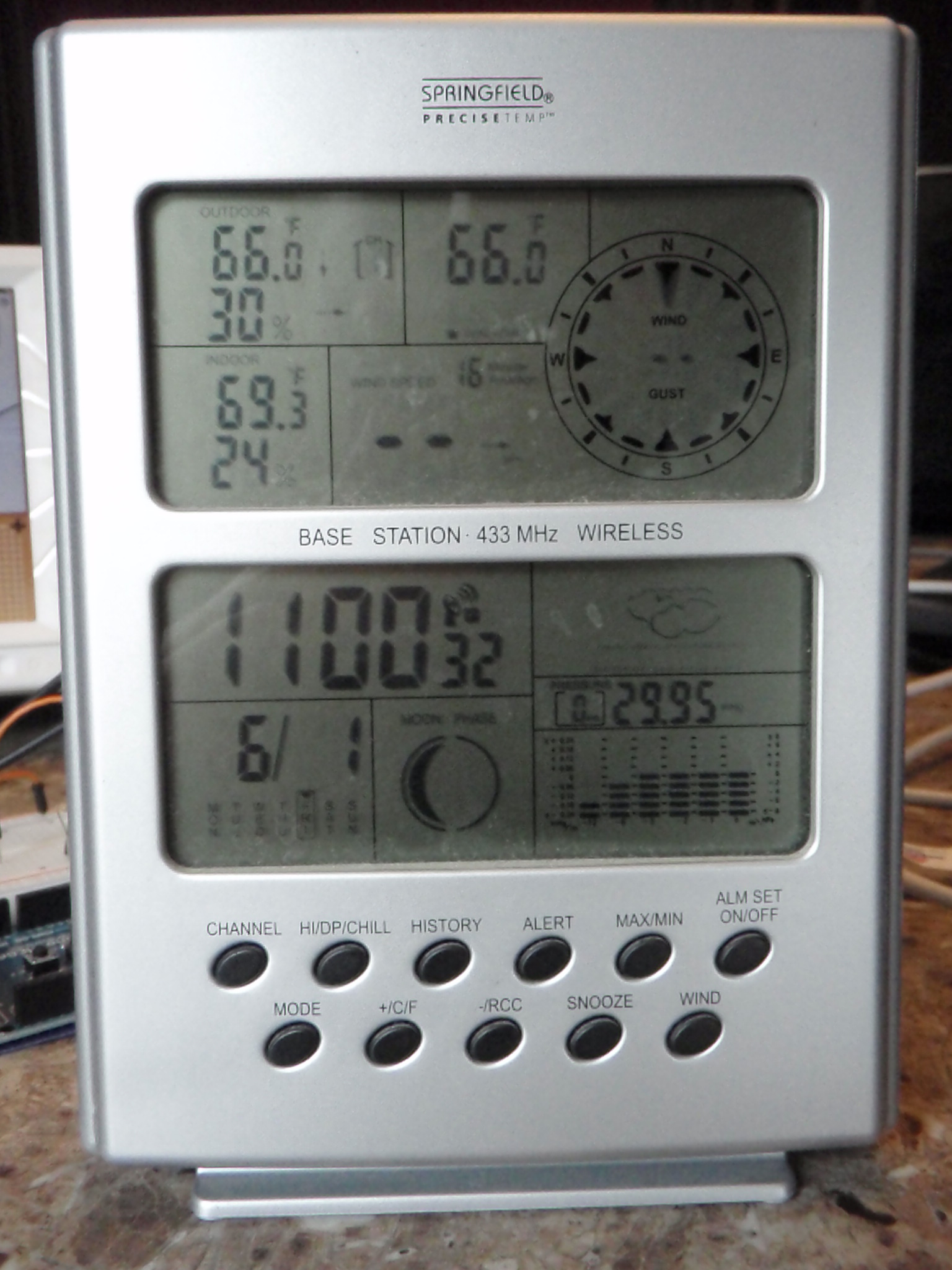
Here's the Springfield Precision #91751 atomic clock. You'll notice in the upper-left hand corner that it has a temperature and the humidity. That's the temperature I'm going after. I'm really only interested in the temperature, but since it's broadcasting humidity too, I'll tap that!
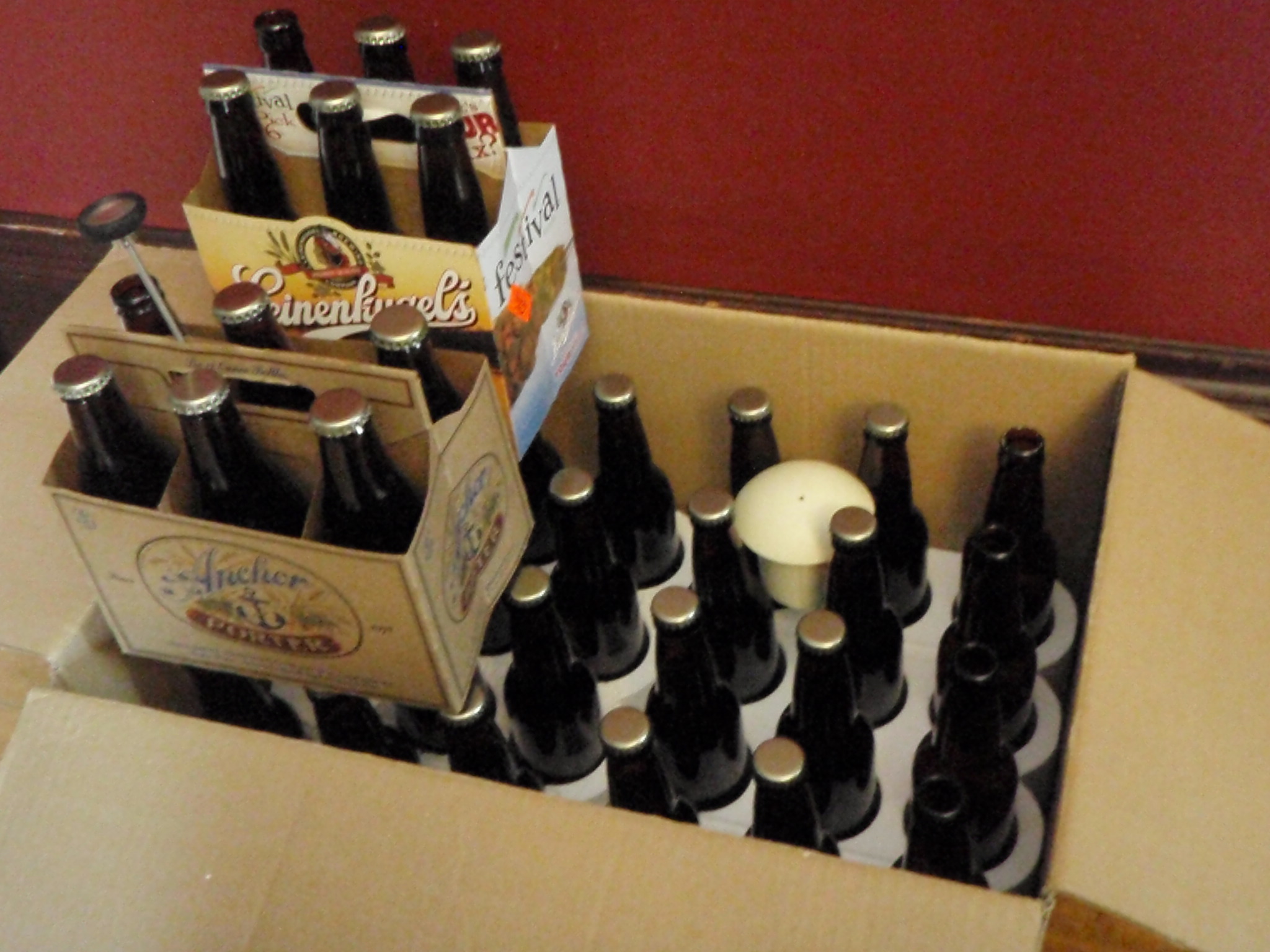
Here's my current batch of root beer... Yeah, the stuff that's not carbonating as fast I as I thought it should... quit laughing. Anyway, you'll notice the mushroom shaped device sitting in box on the right. That's the wireless thermometer. I didn't REALLY need to post this picture, but I thought it'd be cool to post a picture of my current batch... and moving on.
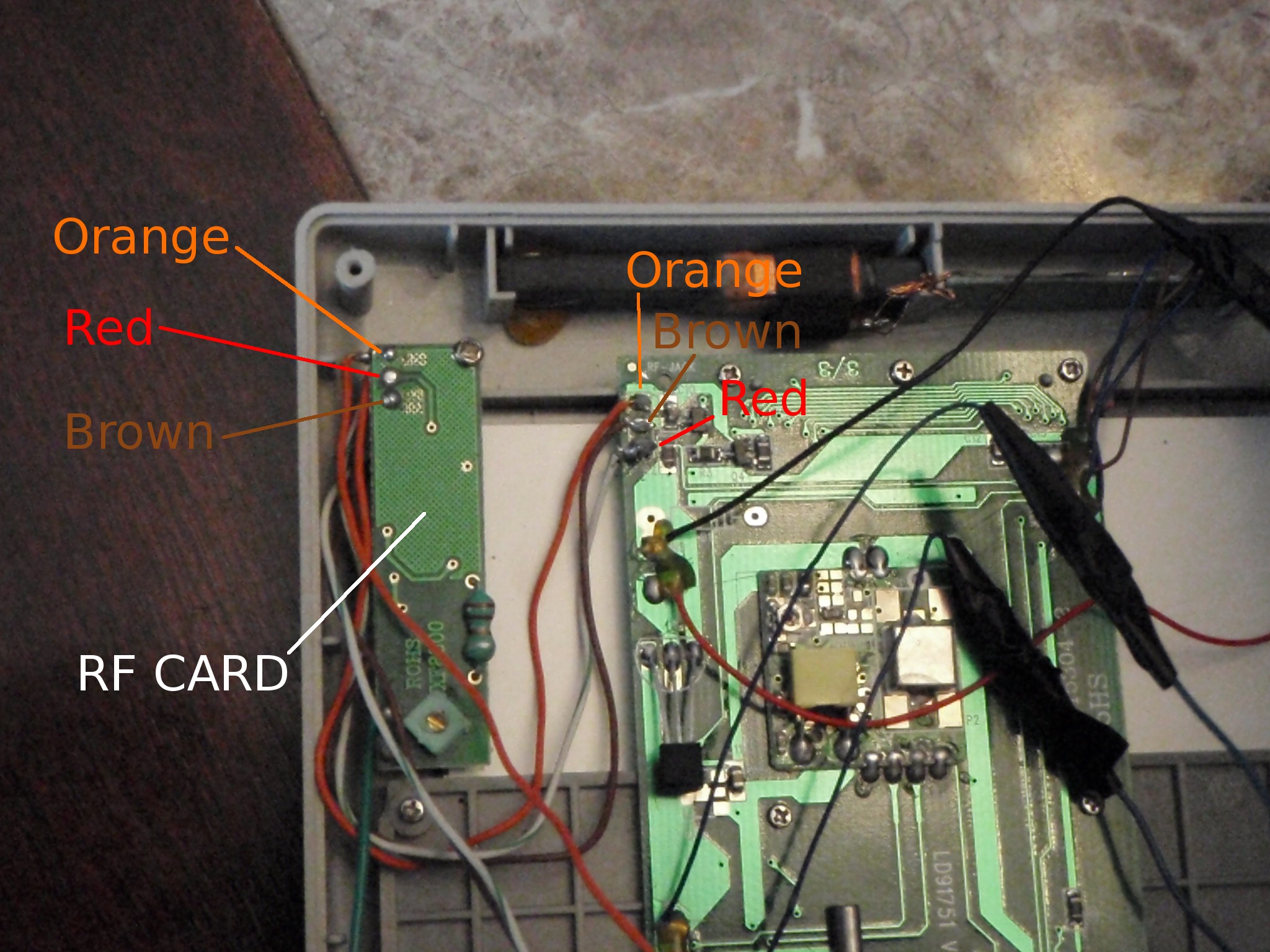
Here are the guts of the atomic clock. The RF Card is on the left. I did some rewiring work inside here, basically I made all the wires longer so it was easier to work with, then I got to work.
I wasn't sure what each line did coming for the RF card but after hooking it up to my oscilloscope for a little bit it became clear.
THE BROWN wire goes HIGH when data is being transferred. I use this as the trigger to tell the Arudino when to start listening to the data wire.THE ORANGE wire is the ground.THE RED wire is the data wire. This is where a series of pulses (long for 1, short for 0, LONGEST for data break) is transmitted. This is the data coming from the wireless thermometer.
The manufacturer is who chose the colors above. Those educated may note in this picture that I do not have a RED wire. This is because I replaced those lines with longer ones from the inside of some CAT5 cable. I didn't have long enough red wire to spare.
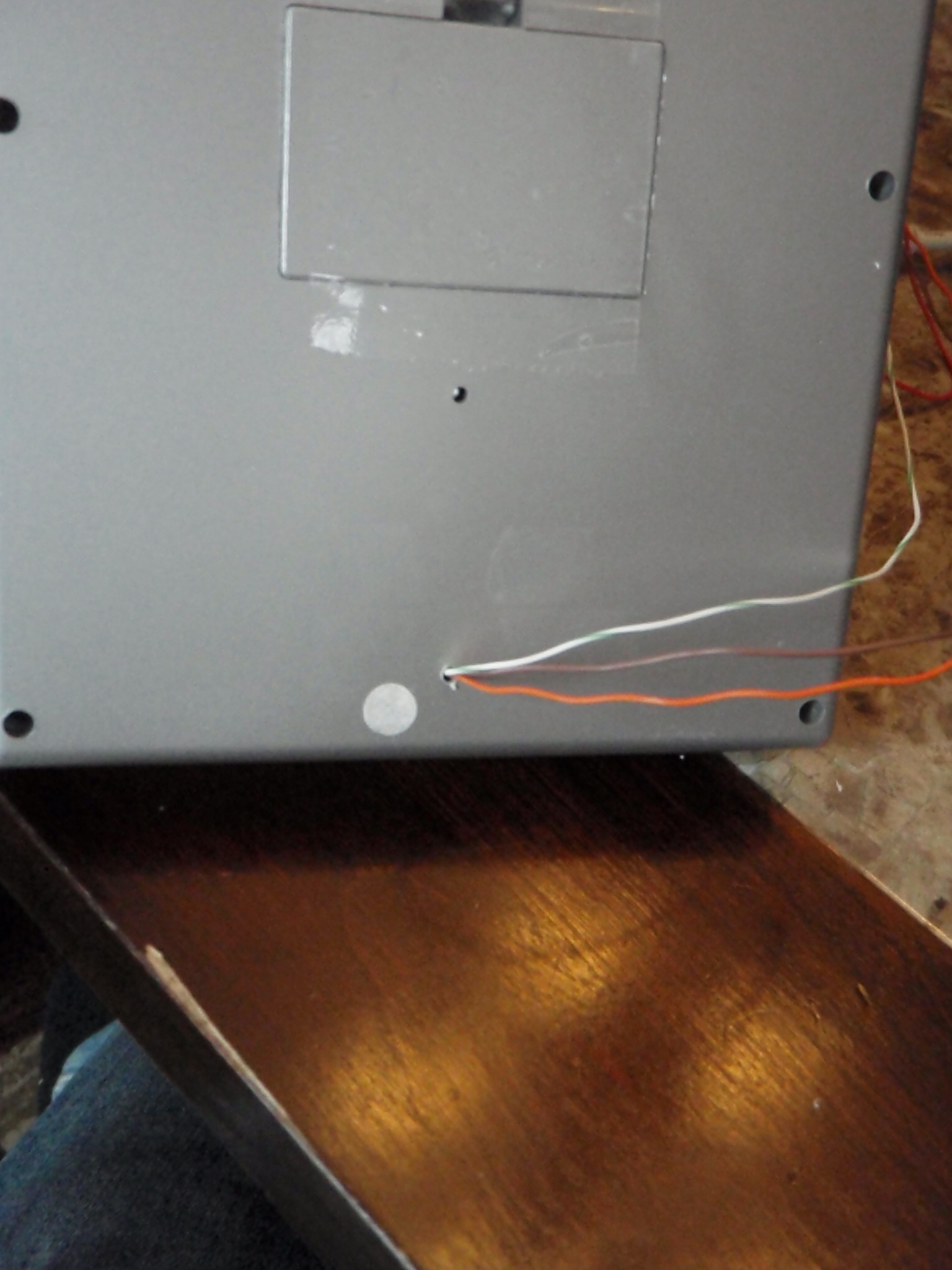
I tapped the three points above and soldered some longer wires onto them. I drilled a hole in the back and brought the wires outside the case to work with.
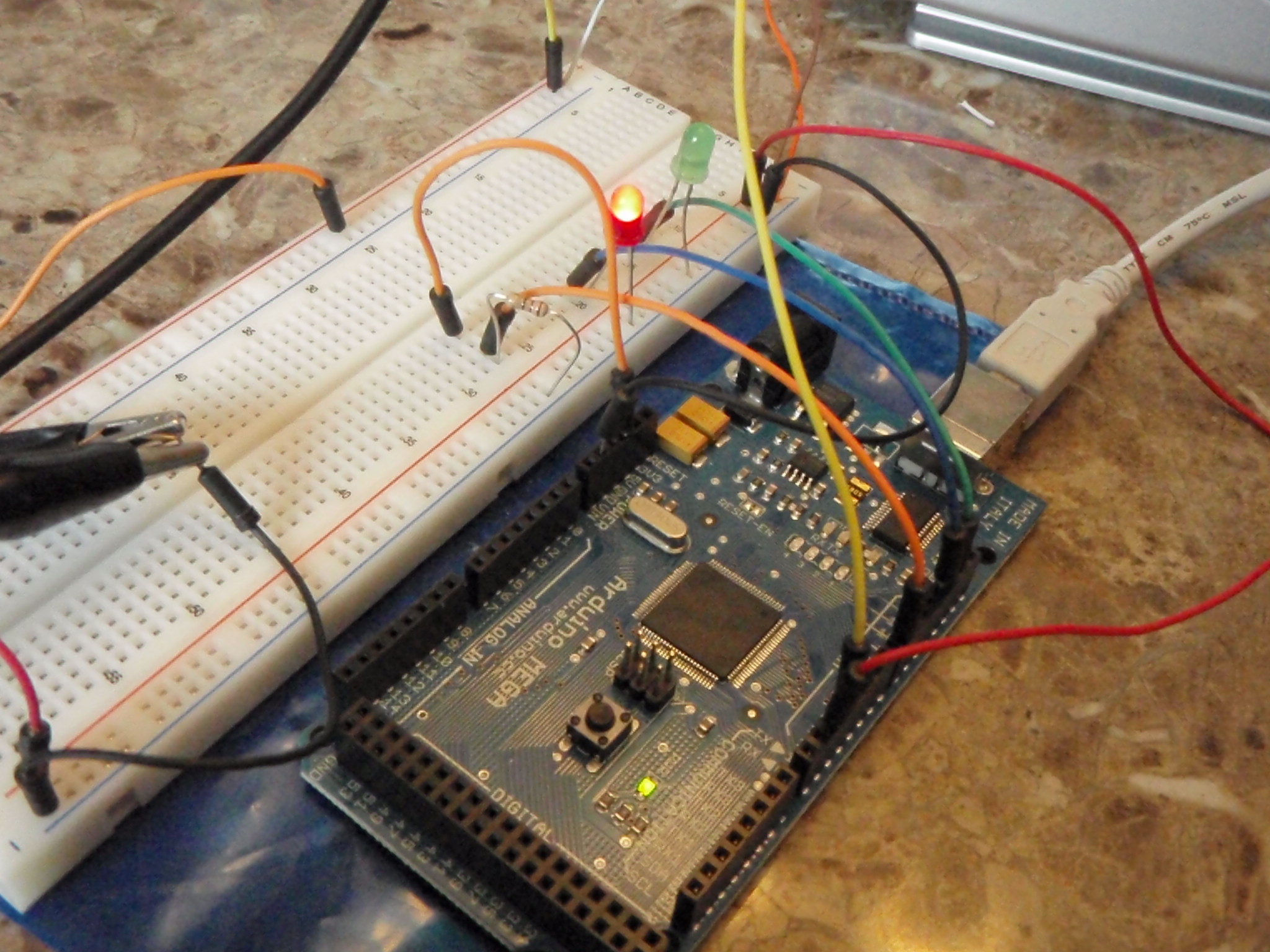
The wiring is simple enough. There's some extra stuff on here because I have it hooked up to my oscilloscope but here's basically how it's wired.
RED (picture here as White / Green), the data line, is brought to Pin 3 on the Arudino.
ORANGE, the ground line, is brought to the GND pin on the Arduino.BROWN, the trigger, is brought to Pin 2.
I also have a Green and Red LED. These are status LEDs.
The GREEN LED is connected to Pin 13. It's used to tell me when data is being received. This basically just goes HIGH when the BROWN line (Pin 2) goes HIGH.
The RED LED is connected to Pin 12, this sets the Arudino program into debug mode. When in debug mode it sends extra data out the serial line.
The DEBUG switch is connected to Pin 8. When Pin 8 is high, debug mode (and the red LED) is active.
Here's a picture of the circuit while it's receiving data from the wireless themometer.
RED indicates the trigger (Pin 2 & BROWN wire) status. In the picture it is HIGH.
The YELLOW line on the oscilloscope is monitoring the data (Pin 3 & RED wire).
You may note that the GREEN and RED LED are active, indicating the RF receiver is on and in the Arudino program is in debug mode.
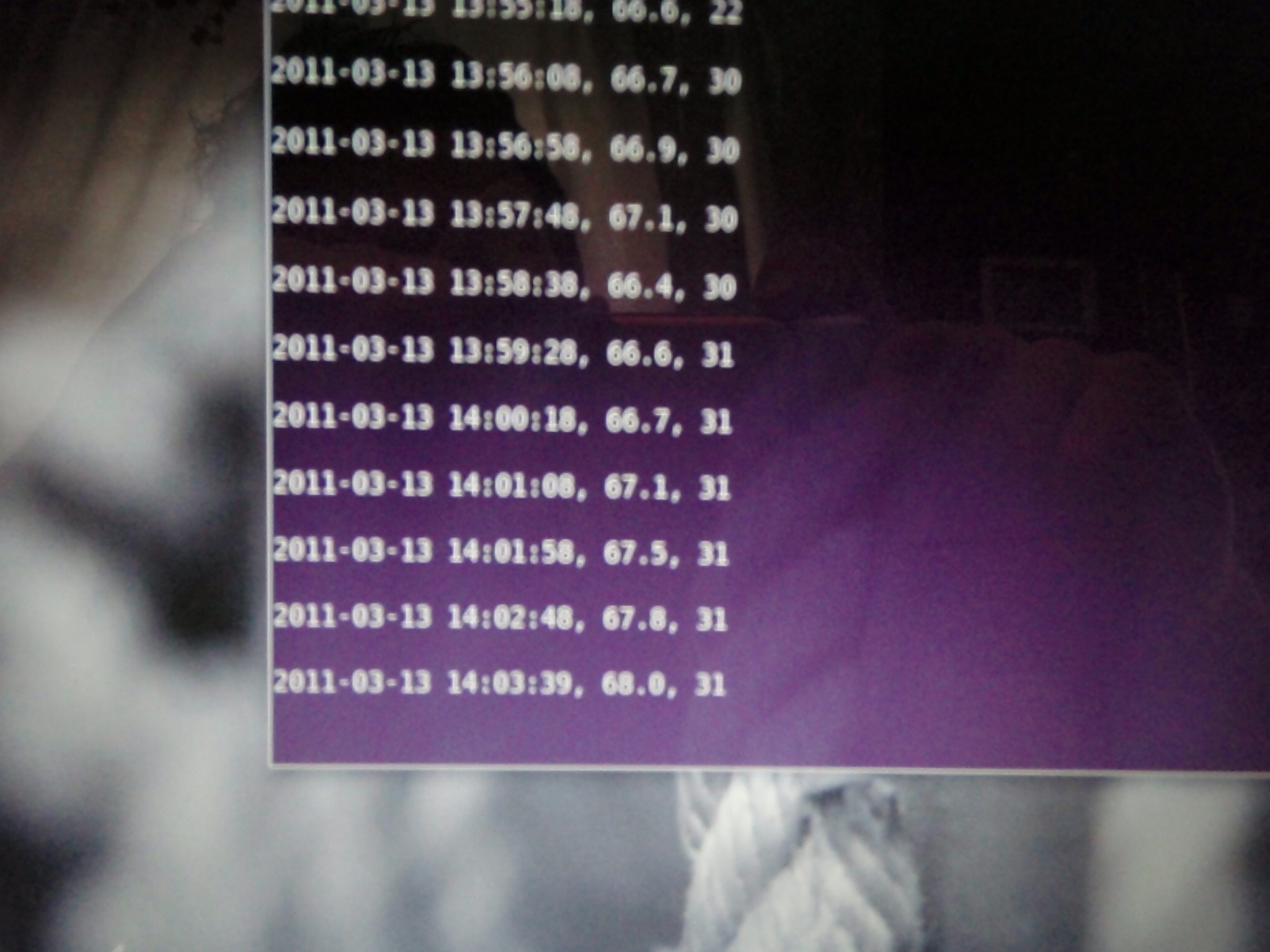
Once the data is received by the Arduino it's sent over the USB cable to the computer. This is where I have a python script listening to /dev/ttyUSB0 for incoming data. The data is then dumped to a .CSV file for later use. From here I will also make this data available remotely so I can check it from my Android phone.
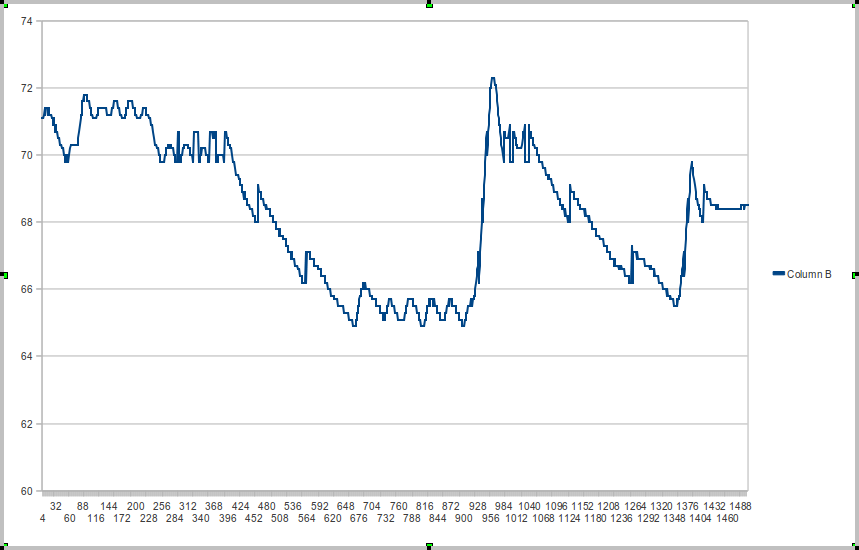
Now that I have my data, here's a graph I threw together. Looks like it's all working as expected!
The Arduino Code:
The heart of the Arudino code is the pulseIn() function. It’s purpose is to monitor a pin and measure how long that pin stays HIGH. In this case we are monitoring pinData (Pin 3). The length of the pulse indicates a 1, 0, or data break. The function decodeTime() converts the pulse length into 1 or 0, or a data break.
When all is done, the program looks for the ID number (“10011001000000000000”) in the bit stream. Doing this helps alleviate the possibility of receiving data from a rouge transmitter.
In the bit stream the temperature directly follows the ID. It’s broadcast in Celcius. Right after temperature is the humidity. The ID, temperature, and humidty are sent four times per transmission.
The output of this program (when NOT in debug mode) is similar to the following:
Temp:
11011100
Humidity:
01000010
</pre>
intpinLED=13;// LED connected to digital pin 13intpinTrigger=2;// This pin goes HIGH when data is being sent. (ORANGE)intpinData=3;// This is the pin that the data is sent on (RED)intpinDebug=8;// Debug ouput when pin is HIGH.intpinDebugLED=12;// LED lit when debug mode is active.booleandebug;// Debug out to serial port, else just temp and humidity.voidsetup(){Serial.begin(9600);pinMode(pinLED,OUTPUT);pinMode(pinDebugLED,OUTPUT);pinMode(pinTrigger,INPUT);pinMode(pinData,INPUT);pinMode(pinDebug,INPUT);}voidloop(){if(digitalRead(pinTrigger)==HIGH){captureData();}if(digitalRead(pinDebug)==HIGH){digitalWrite(pinDebugLED,HIGH);debug=true;}else{digitalWrite(pinDebugLED,LOW);debug=false;}}intdecodeTime(inttime){//This is passed a time in µs (microseconds) and determines if it is a long or short pulse.if(time>0&&time<5000){if(time<3000){return0;}else{return1;}}else{return-1;//Time was 0 or greater than above... Not a 1 or 0.}}voidcaptureData(){unsignedintx=0;unsignedinti=0;intrawData[1000];//boolean data;if(debug){Serial.println("Capturing...");}digitalWrite(pinLED,HIGH);// sets the LED on do{rawData[i]=pulseIn(pinData,HIGH);i=i+1;}while((digitalRead(pinTrigger)==HIGH)&&(i<1000));if(debug){Serial.println("End Capture.");}digitalWrite(pinLED,LOW);// sets the LED off if(debug){Serial.println("Number of pulses:");}if(debug){Serial.println(i);}//Decodeif(debug){Serial.println("Decoding...");}StringData="";for(x=0;x<i;x++){switch(decodeTime(rawData[x])){case0:digitalWrite(pinLED,LOW);Data=Data+"0";break;case1:digitalWrite(pinLED,HIGH);Data=Data+"1";break;default:Data=Data+"\n";break;}}digitalWrite(pinLED,LOW);if(debug){Serial.println(Data);}//Find ID start:intIDStart=Data.indexOf("10011001000000000000",10);if(debug){Serial.println("ID Starts at the "+(String)IDStart+" pulse.");}if(IDStart<0){if(debug){Serial.println("ERROR: Invalid ID");}return;}Stringtemp=Data.substring(IDStart+20,IDStart+28);Stringhumid=Data.substring(IDStart+29,IDStart+37);if(debug){Serial.println("");}Serial.println("Temp:");Serial.println(temp);Serial.println("Humidity:");Serial.println(humid);Serial.print("\n");delay(2000);}
The Python Code:
This Python code may need to be modified slightly in order to run under Windows. If you wish to run this under Windows I believe all you would need to modify is the /dev/ttyUSB0 line to match your COM port on Windows.
This code listens to /dev/ttyUSB0 and decodes the data from the Arudino. It's in charge of converting the binary to decimal, converting Celsius to Fahrenheit, and outputting a CSV. Eventually, I'll update this code to make the data accessible from the web so I can monitor from my Android phone.
#! /usr/bin/env python
# Atomic Clock Thermometer
# Author: Gregory Strike
# Tested on Python 2.6.6
# Using pySerial 2.3-1
importserialfromtimeimport*#Yeah, it's hard coded.
s=serial.Serial('/dev/ttyUSB0',9600,timeout=0)filename="temphumid.csv"data=""whileTrue:waiting=s.inWaiting()ifwaiting>0:data=data+s.read(waiting)ifdata.find("")<>-1:tempStart=data.find("Temp:")+7binTemp=data[tempStart:tempStart+8]humidStart=data.find("Humidity:")+11binHumid=data[humidStart:humidStart+8]temp=long(binTemp,2)strTemp=str(temp)temperature=float(strTemp[:2]+"."+strTemp[-1])temperature=(1.8*temperature)+32temperature=round(temperature,1)humidity=long(binHumid,2)/2#print strftime("%Y-%m-%d %H:%M:%S")
#print "Temperature:"
#print temperature
#print "Humidity:"
#print humidity
#print data
file=open(filename,"a");line=strftime("%Y-%m-%d %H:%M:%S")+", "+str(temperature)+", "+str(humidity)+"\n"file.write(line)file.close()printlinedata=""[/python]That's it folks. I'llbekeepingthiscodeupdatedasImakechangesbutpleasefeelfreetouseitasyouseefit.Thankstotheguys (error404&GaspingSpark)inthe<ahref="https://hackaday.com/">HackADay</a>Forumsforsomemuchneededdirection.Theforumsaredefinitelyagreatresourceespeciallywhenpeoplecontribute!